HLLV Voice Chat: Keys, Channels, and Current Audio Issues
A current-build-safe way to separate local, squad, and command communication without copying stale keybinds.
If VOIP stops mid-match, open Options → Audio → VoIP Connection Status and choose Disconnect, then Connect—the reversible restart published by Team17 Support. If the speaking indicator never appears, check the selected input and current bindings; if it appears but teammates hear nothing, test the output and channel. In-match channels are Proximity, Unit, and Command; Party Voice Chat currently works only in the lobby.
Read the answer source: Team17 support — restart a dropped VOIP connection ↗- Current Audio and Keybinds screens
- Working microphone and selected input/output devices
- One channel to test at a time
- Platform and build details if the issue remains
Action sequence
- STEP 01
Hold the current voice binding and watch the speaking indicator. No indicator means start with the input device or binding; an indicator without heard audio means test output and channel separately.
- STEP 02
If VOIP was working and stopped mid-match, open Options → Audio → VoIP Connection Status, choose Disconnect, then Connect. Team17 describes this as a VOIP connection restart, not a fix for every audio symptom.
- STEP 03
Confirm the microphone and output device in Windows and in the game. Re-save only the affected binding after checking that it is not colliding with another action.
- STEP 04
Test Proximity, Unit, and Command one at a time. Party Voice Chat currently works only in the lobby because of EOS limits; it is not the in-match fallback.
- STEP 05
When reporting the issue, separate a brief echo or stutter from muffled or echoey gunfire and explosion audio.
- STEP 06
Success is a speaking indicator plus teammate confirmation on the intended channel. If reconnecting fails, record platform, input/output, channel, build, and whether the indicator appeared before asking for support or rejoining.
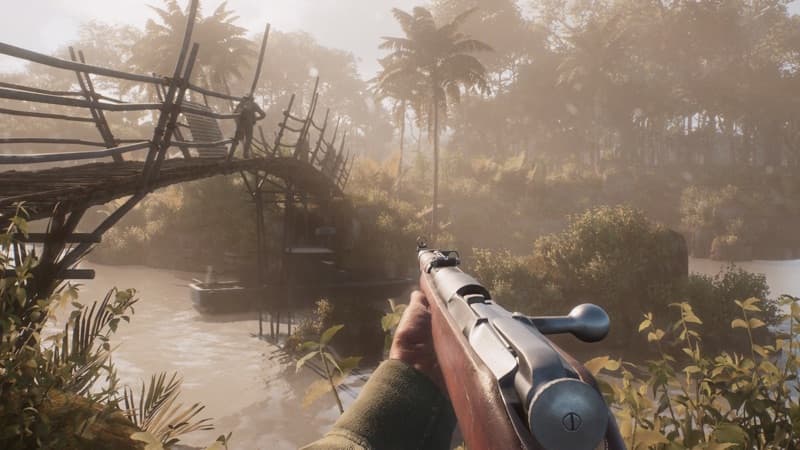 HLLV / MISSION SCENE
Player notes from the field
These are player observations for handling match-to-match differences. They are not official rules and do not replace the direct answer above.
All three channels can fail together
A player discussion reports proximity, squad, and command inputs all stopped responding, even after changing bindings and reinstalling; the microphone still worked in Windows and another game. This post is a symptom report, not a Patch 1.4 reproduction, so capture the platform and build before treating it as current behavior.
Confidence boundary: Single unresolved player report; not a Patch 1.4 verification.
Open field source · Voice inputs stopped working ↗Use the indicator to split input failure from voice transport
An older official playtest note says that if the in-game speaking indicator never appears, start with device selection and bindings. If it appears but other players cannot hear you, preserve the platform and build details and compare the official EOS issue status instead of claiming the PS5 fix covers every platform. This is background evidence, not a Patch 1.4 current-build test.
Confidence boundary: Historical official playtest note; current status is superseded by the Patch 1.4 and Community Feedback #3 updates.
Open field source · Official voice issue notes ↗If it doesn’t work
- The physical key assigned to each voice channel is an individual settings choice and can vary by platform.
- Patch 1.4 resolved the main distorted or robotic Proximity Chat issue; Hotfix 1.4.2 addressed radio-close/menu transmission repeat or stutter and a third-party spatial-audio reverb case. Remaining symptoms still need current-build reproduction.
- Party Voice Chat is currently lobby-only because of EOS technical limits. In a match, the available channels are Proximity, Unit, and Command; no date is given for expanding Party Voice Chat.
- Team17 Support publishes Disconnect → Connect for VOIP that stops mid-match; it is a reversible connection restart, not proof that every audio problem is local. Patch 1.3 is live and fixes Killed in Action VOIP stutter or cut-out. Patch 1.4 fixed prolonged distorted or robotic Proximity Chat voices, while Hotfix 1.4.2 handled separate reverb and transmission-repeat cases. Remaining reports need platform/build details.
Evidence & version notes 16 linked sources
Open the original discussion or official note when the detail matters. This page is an unofficial player reference.
- 01
- 02
- 03
- 04
- 05
- 06
- 07
- 08
- 09
- 10Patch 1.2 full changelog ↗Official
- 11
- 12Official FAQ ↗Official
- 13Voice inputs stopped working ↗Player discussion
- 14HLLVN voice chat guide ↗Community guide
- 15Official HLLV Update 1.5 ↗Official
- 16Official HLLV Hotfix 1.4.2 ↗Official
Checked 2026-09-16. Mechanics, controls, and player reports can change with the build; verify patch-sensitive details in your current game.